BEPRO Space
BEPRO Editor
Cerberus
Login & Signup
Request Match Analysis
0
BEPRO Space
Basic
All Users
BEPRO Video Player
Let's learn the basics about BEPRO video player
Videos recorded with a BEPRO camera (Fixed camera or Cerberus) have a panoramic view.
We have developed our own 3D video player to comfortably view these horizontally elongated videos compared to standard 16:9 videos.
You can drag the screen to move the view or use the mouse wheel to zoom in and out.
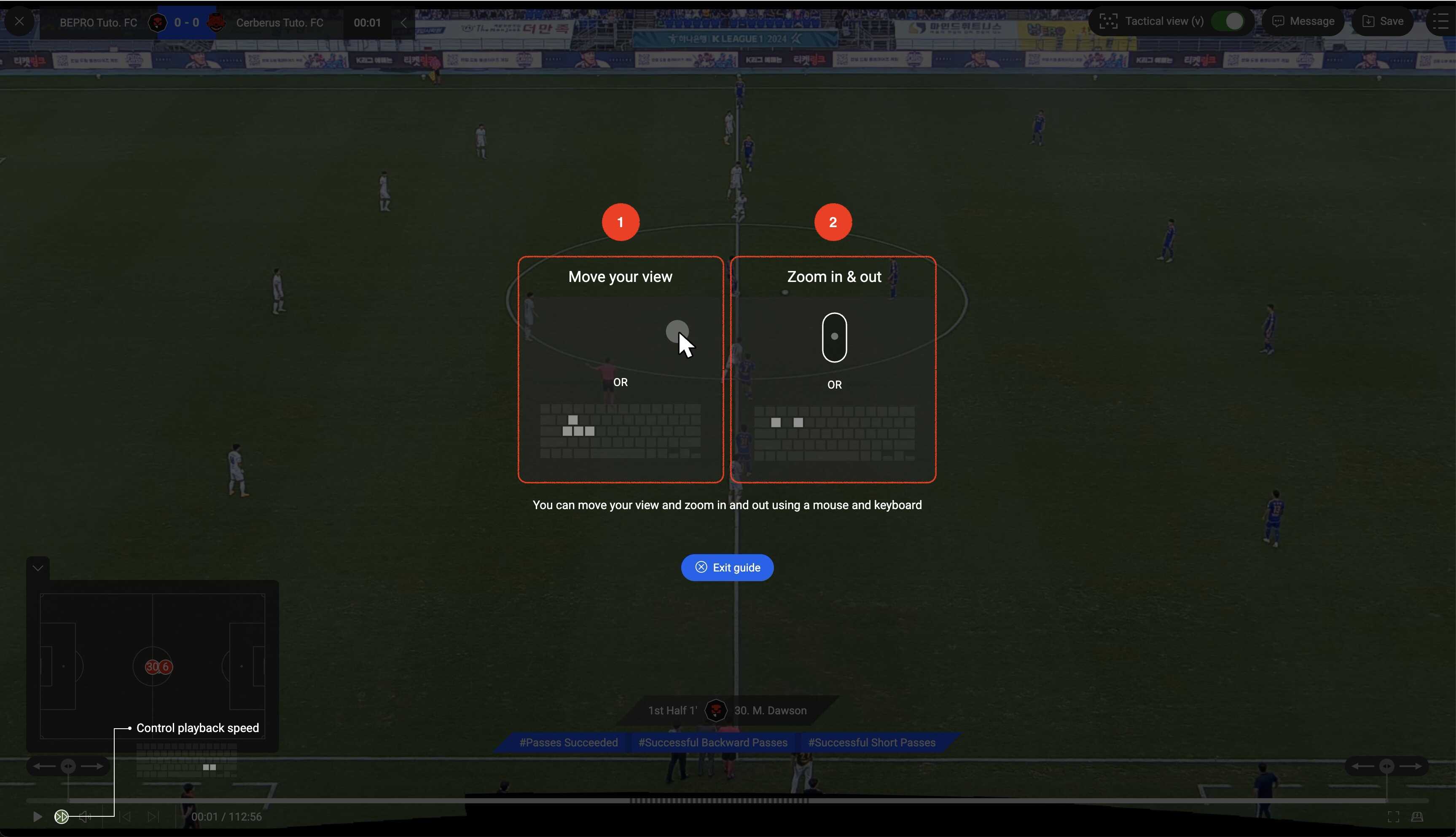
Video Player Configuration
Let's take a look at the basic configuration of the video player.
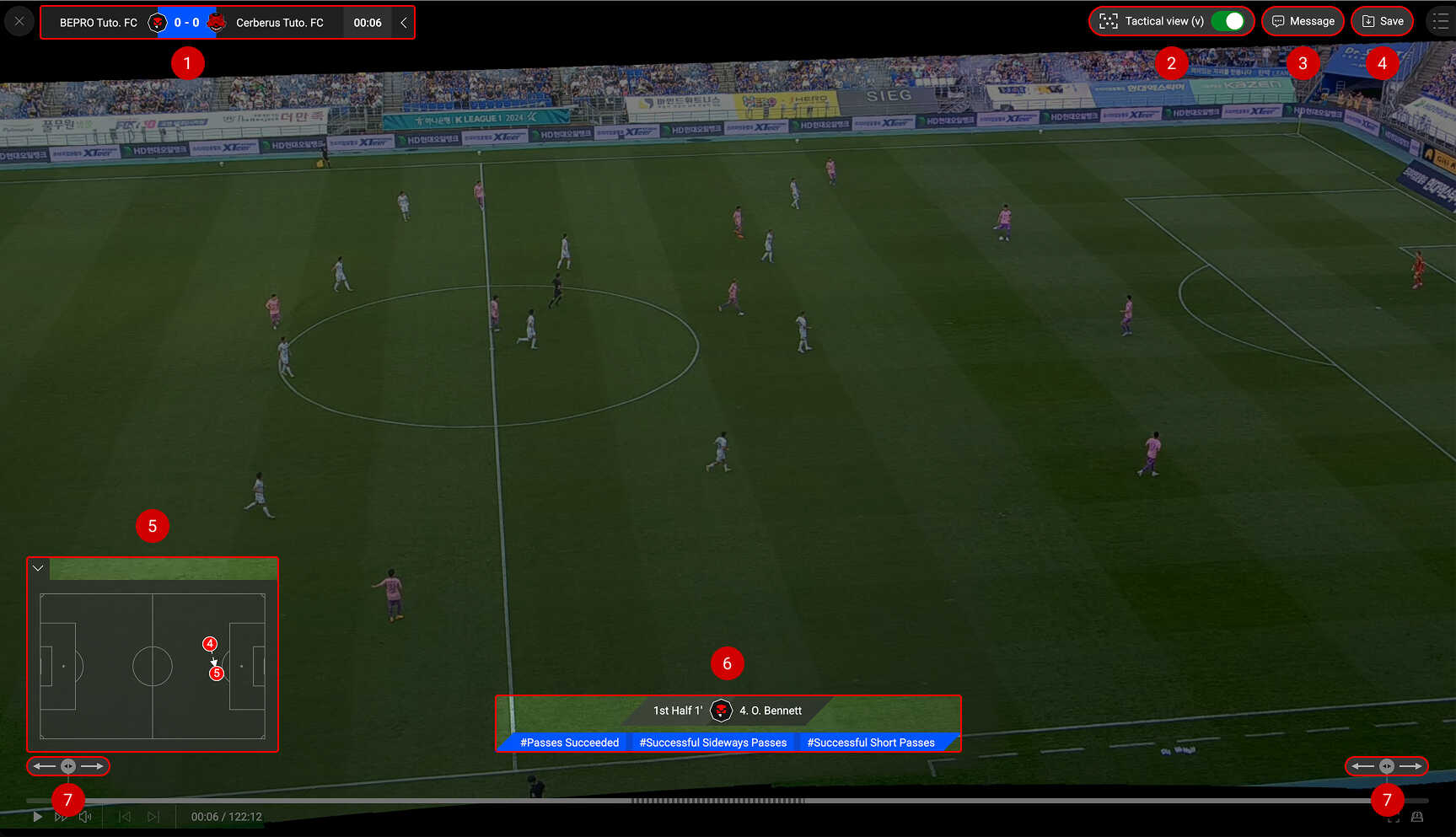
1. Scoreboard
The scoreboard is located in the upper left corner.
Scores are only displayed for analysed matches.
Match time is automatically entered when analysed by BEPRO, but you can also set the match time manually for directly uploaded videos.
For more details, please refer to the "Set Match Time" article.
2. Tactical View On/Off
BEPRO camera creates an optimal view from the recorded panoramic video that captures the overall movement of players, which we call the tactical view.
The tactical view option is enabled by default, but depending on the situation, you can disable this option and freely watch any area you desire.
3. Messenger
Share the video you are currently watching via messenger.
You can create a new post based on the current video or attach it to an existing post.
For more detailed information on using the messenger, please check the Messenger article.
4. Save to Library
Save the video you are currently watching to your library.
For more detailed information on using the library, please check the library-related articles.
5. Mini-map (Analysed Matches)
For matches analysed by BEPRO, the event situation of the currently playing video is displayed on a mini-map.
If you think it takes up too much screen space, you can minimise it by clicking the collapse button in the upper left corner.
6. Event Information (Analysed Matches)
For analysed matches, player and detailed event information for the currently playing event is displayed on the screen.
7. Video Section Adjustment Slider
When playing event clips rather than entire match videos, or clips edited from the entire match video, you can drag the section adjustment slider to extend or reduce the sections before and after.
Previous