BEPRO Space
BEPRO Editor
Cerberus
Login & Signup
Request Match Analysis
0
BEPRO Space
Basic
All Users
Create a post
Let's learn how to write a post in a channel
In Messenger, you can share videos from within BEPRO Space without separate upload or download processes, making it a space for direct sharing and communication.
You can create posts to share with Channel members in "Channels", which work like chat rooms.
There are four main ways to create posts:
1. Creating from a channel
2. With selected videos
3. While watching a video
4. From BEPRO editor
This article will cover only options 1, 2, and 3, which can be done within the BEPRO Space.
1. Creating from a channel
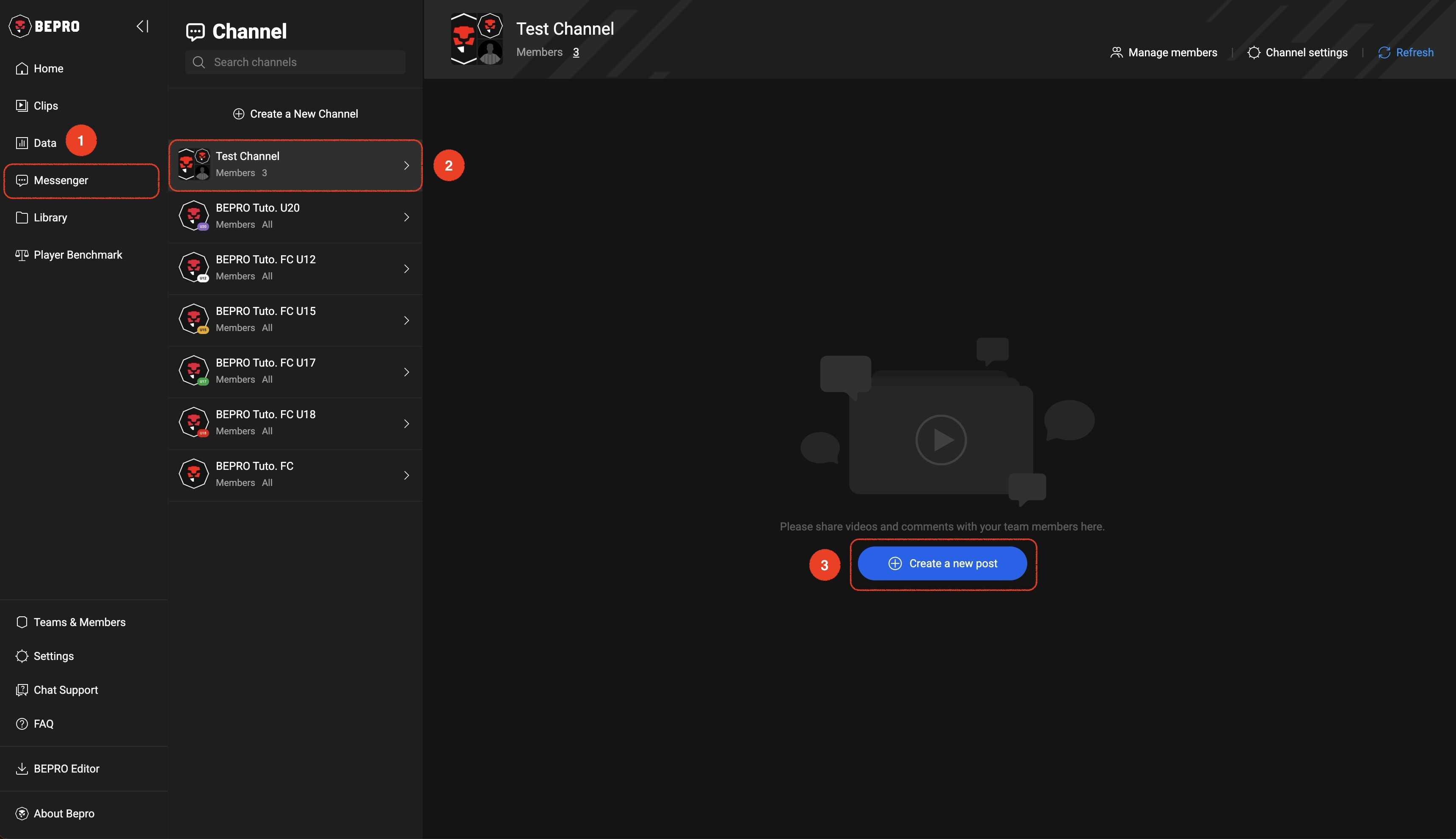
Click the Messenger menu in the sidebar, select the desired channel, and press the 'Create a new post' button.
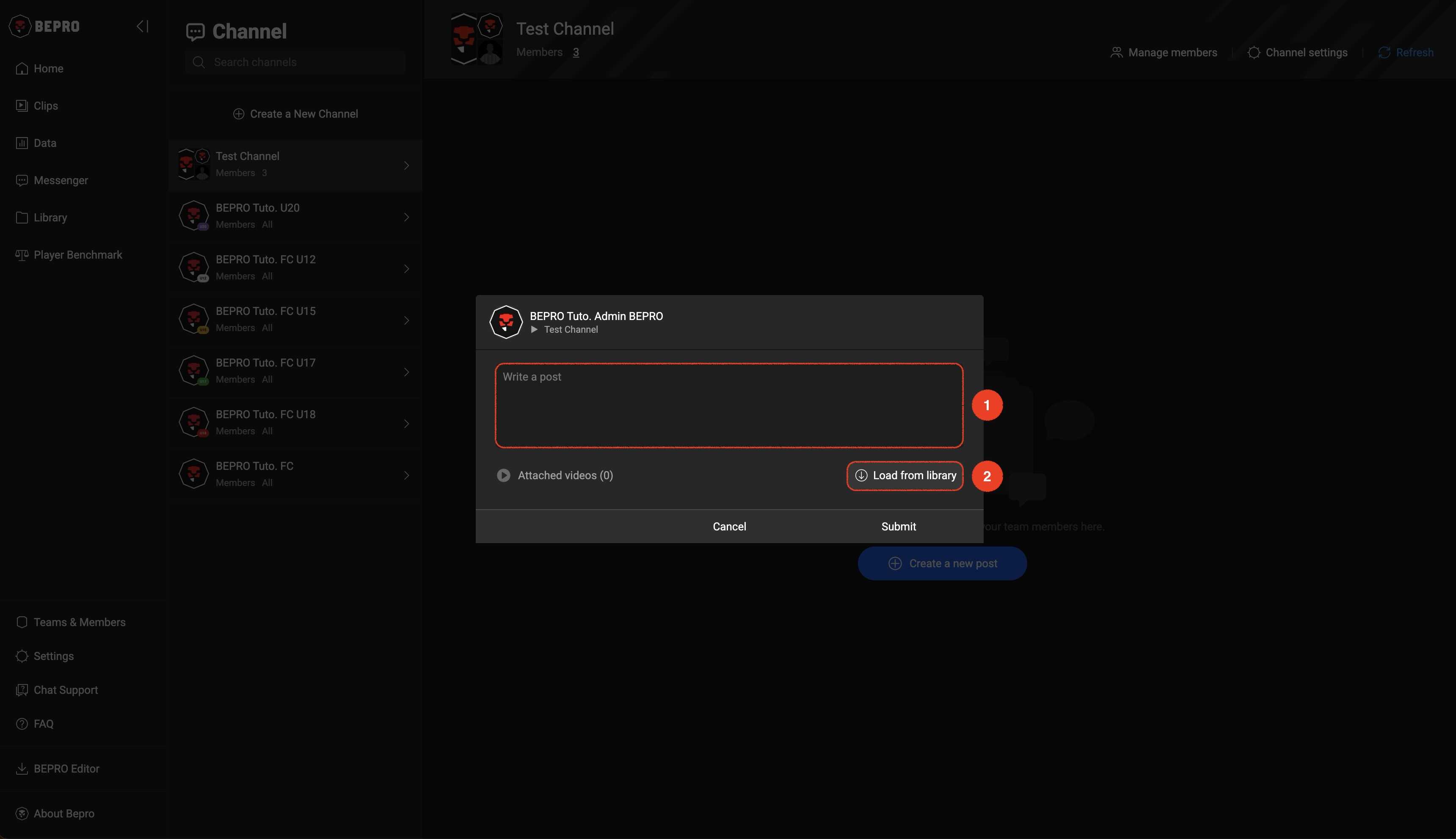
When the post creation modal appears, write your message and load videos from the library.
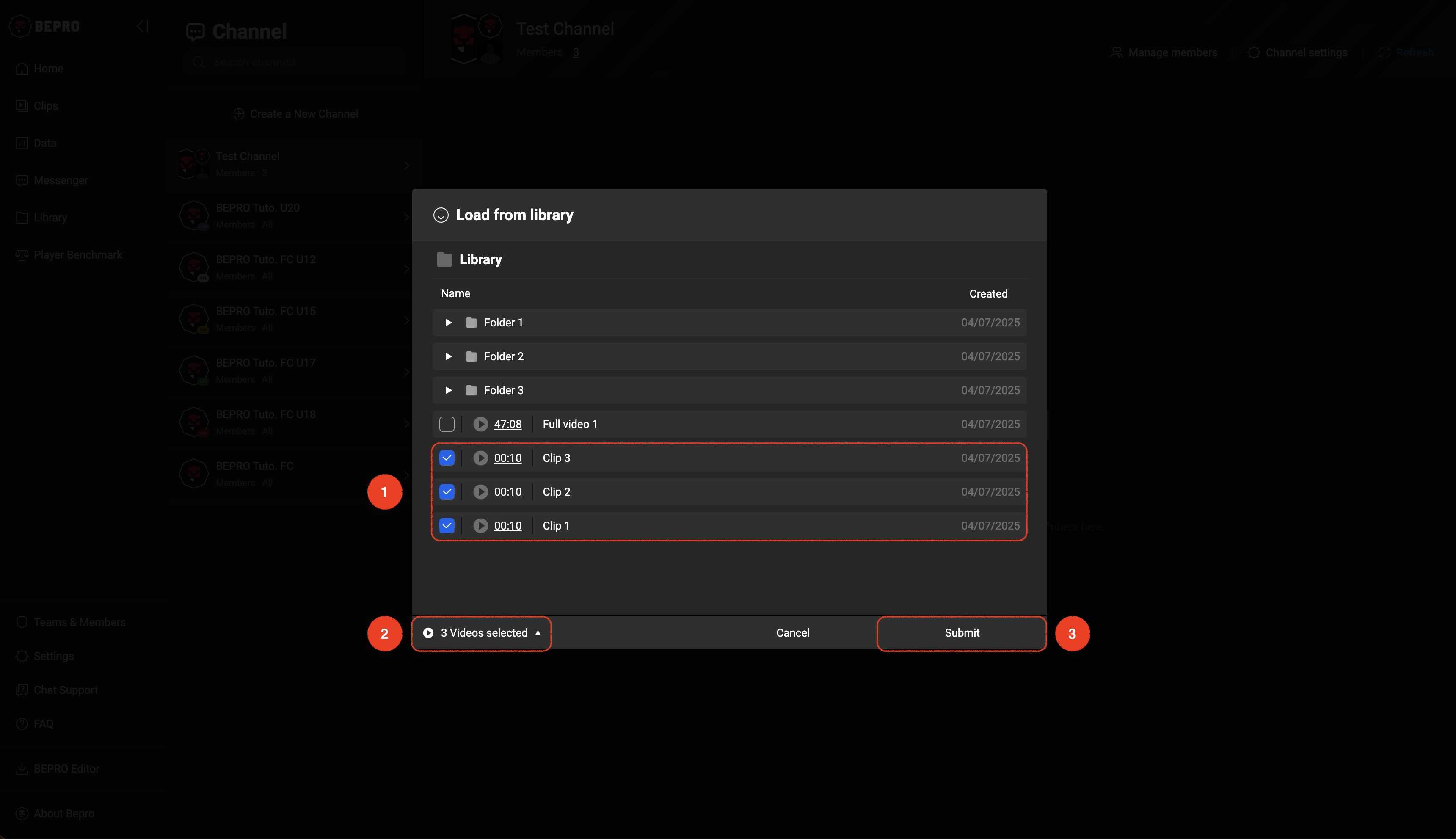
Click the Load from library button, then select the videos you want to attach to the post from the library.
Click the button in the bottom left to see the list of selected videos.
Once you've completed your video selection, click the button in the bottom right to complete the video attachment.
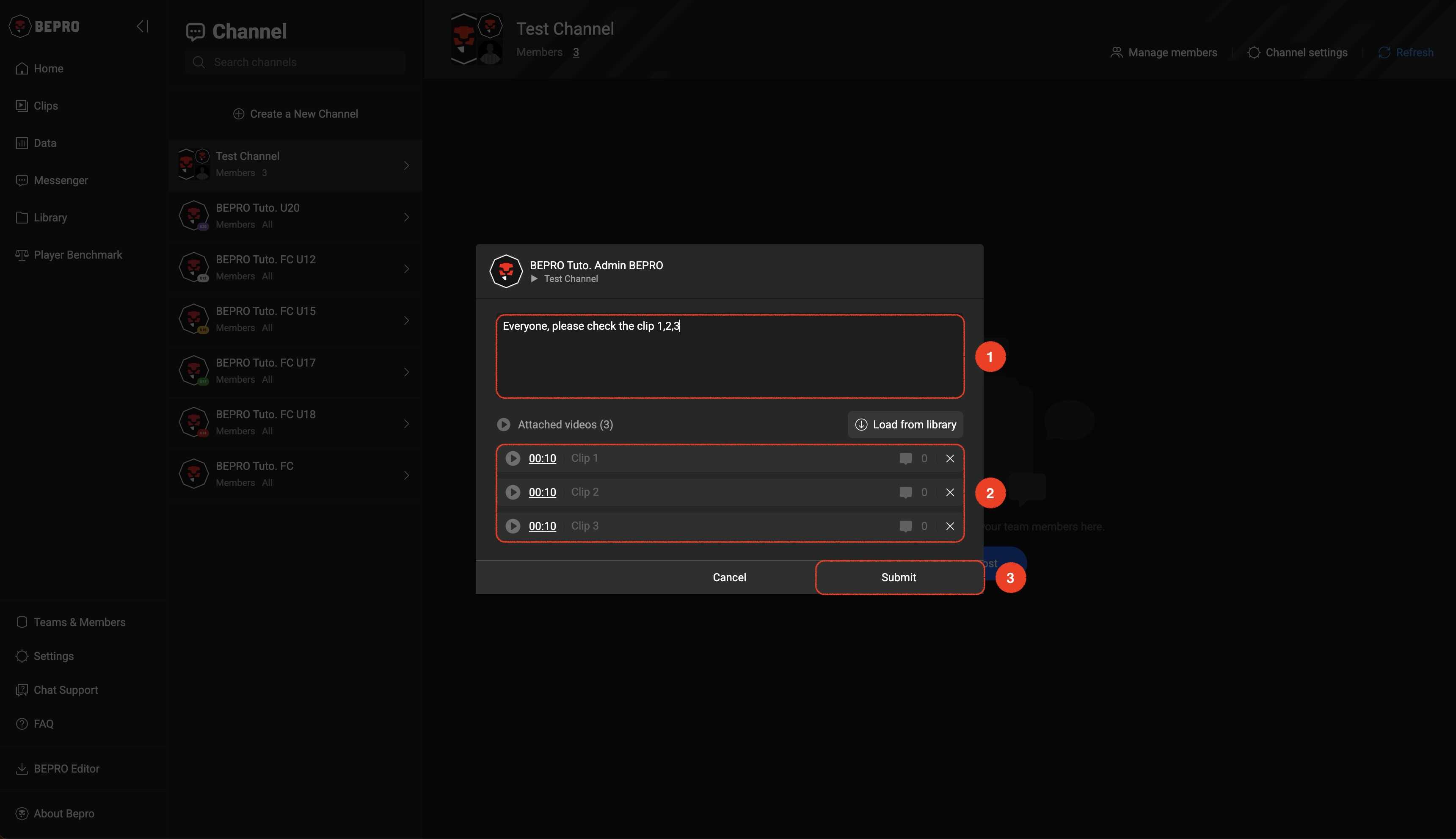
Check the message content and attached video list once more, then click the button in the bottom right to complete the post creation.
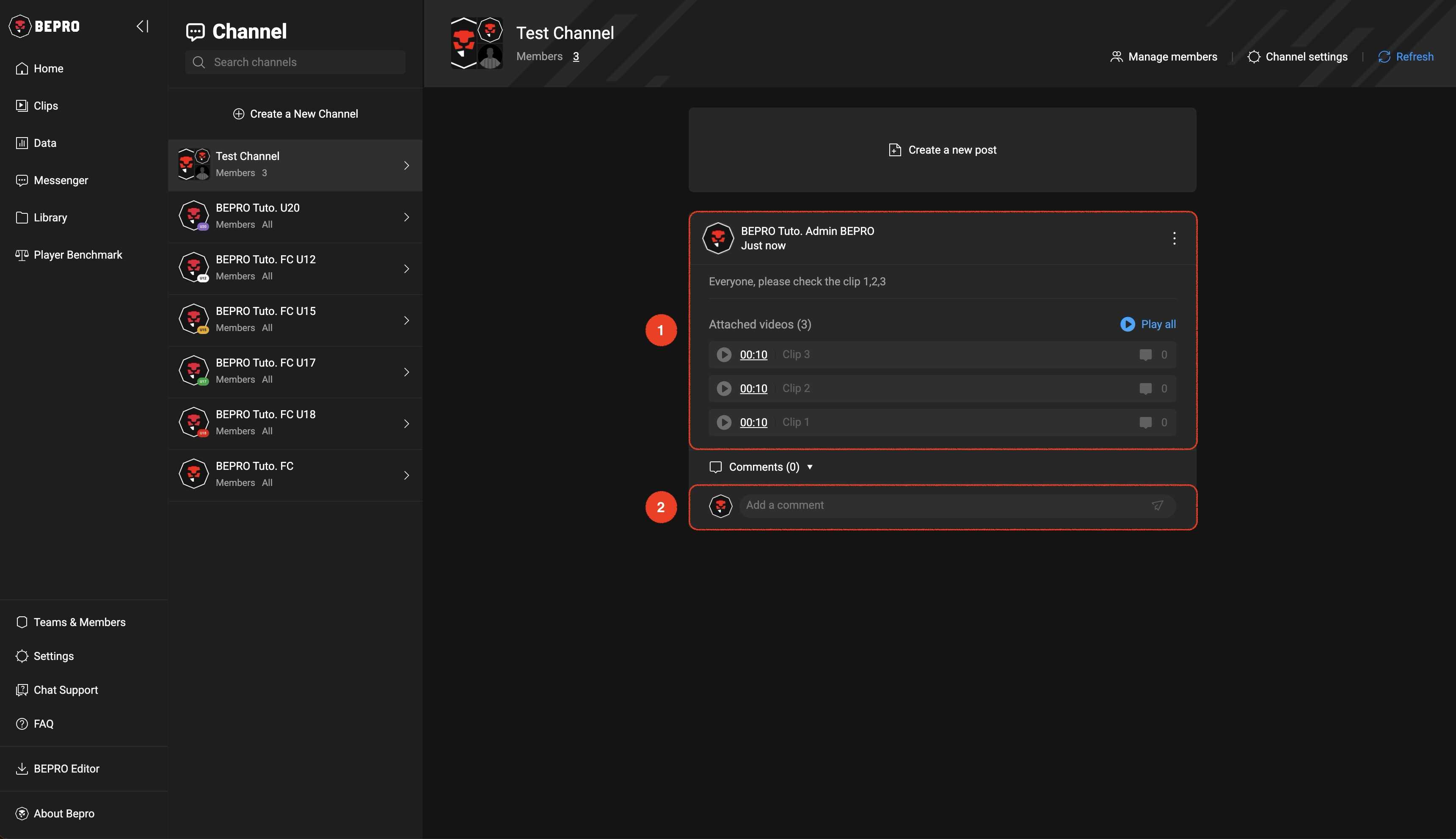
Once the post is created, you can communicate with channel members through comments on the post.
2. With selected videos
Now let's look at how to create a new post with selected videos or add selected videos to an existing post.
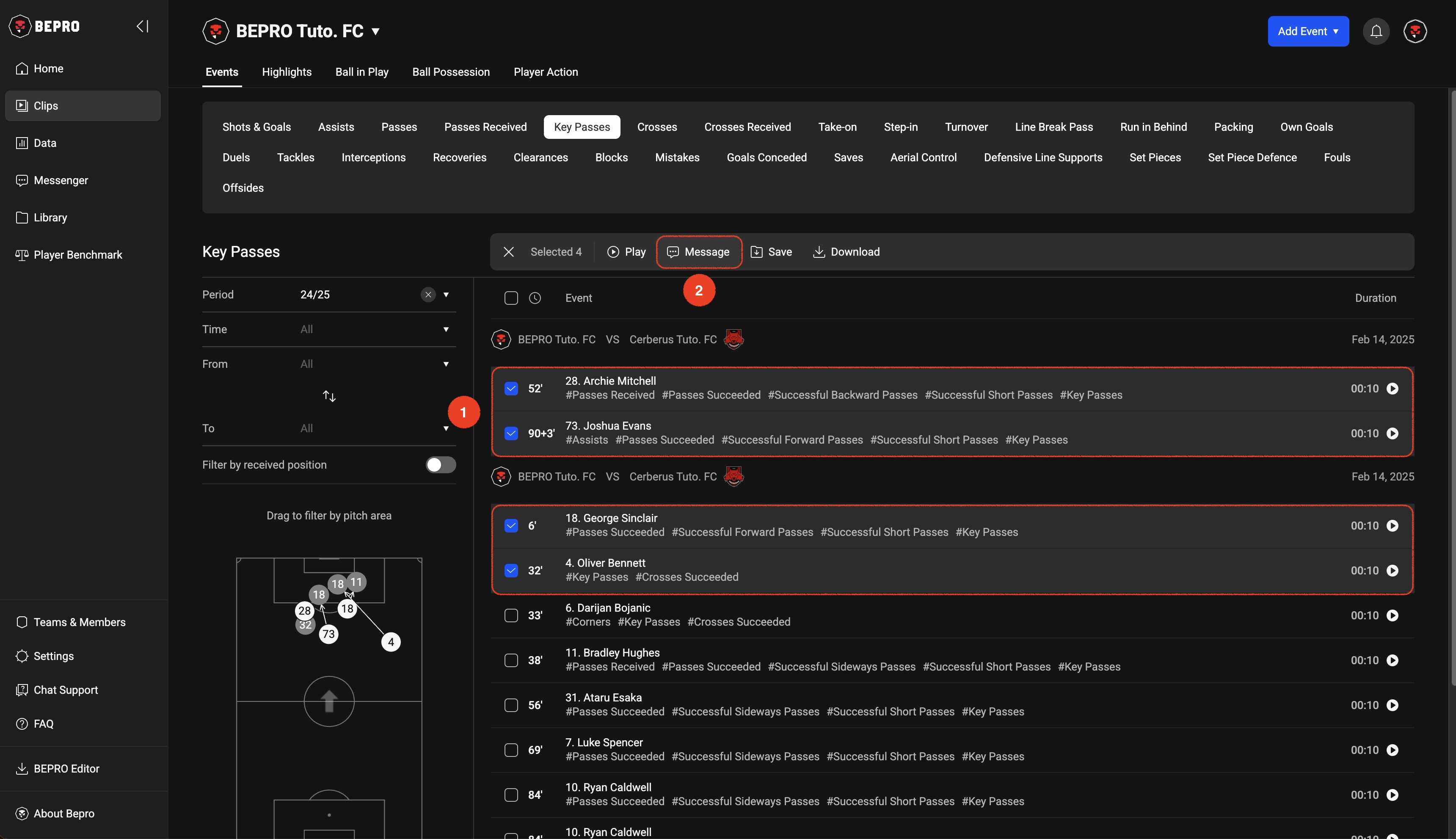
First, navigate to any list page where you can select videos, such as Event Clip, Highlights, or Player Action, then select the videos.
When you select videos, action menus for the selected videos appear. Here, select the "Message" menu.
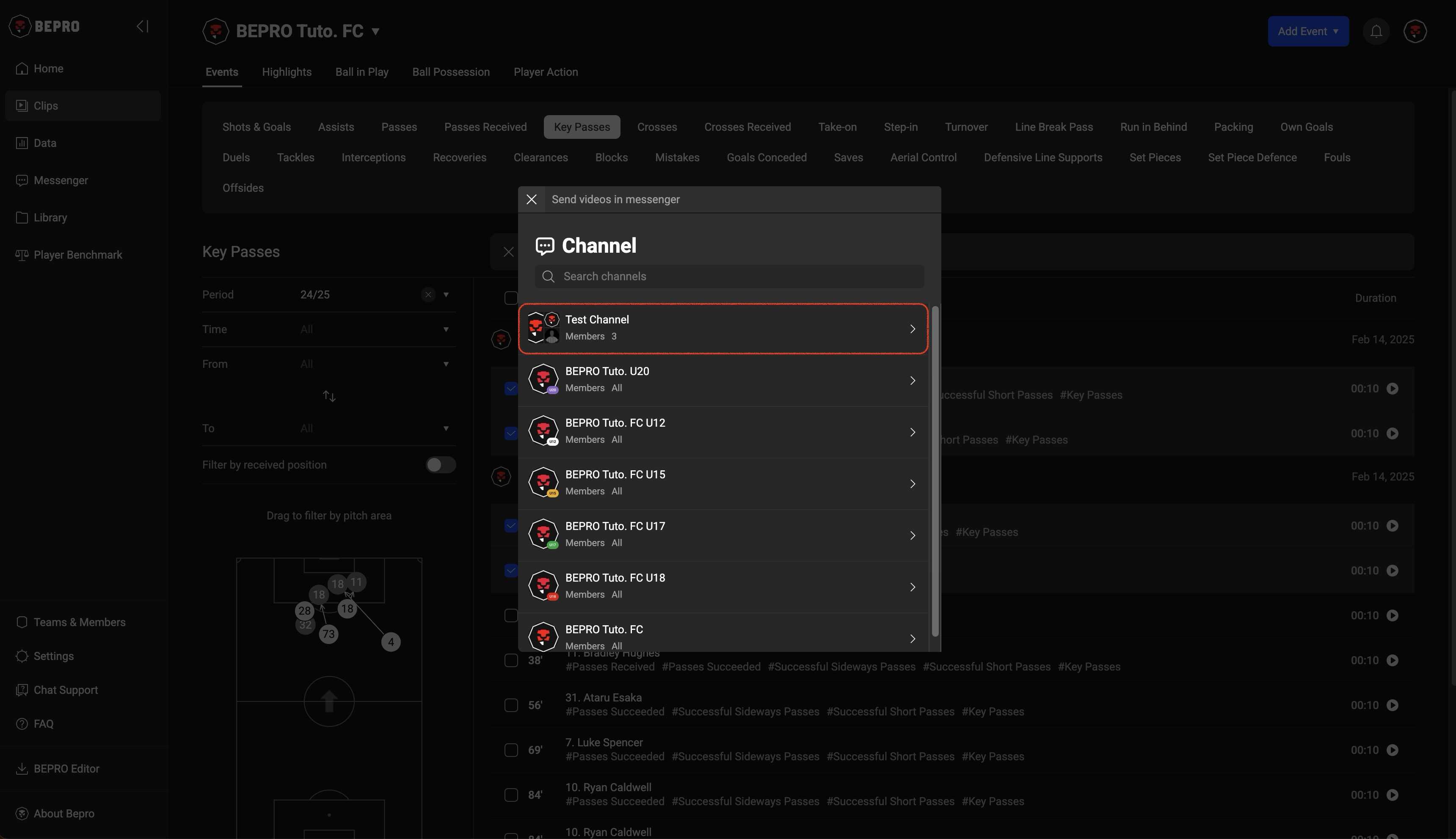
When the channel selection modal appears, first select the desired channel.
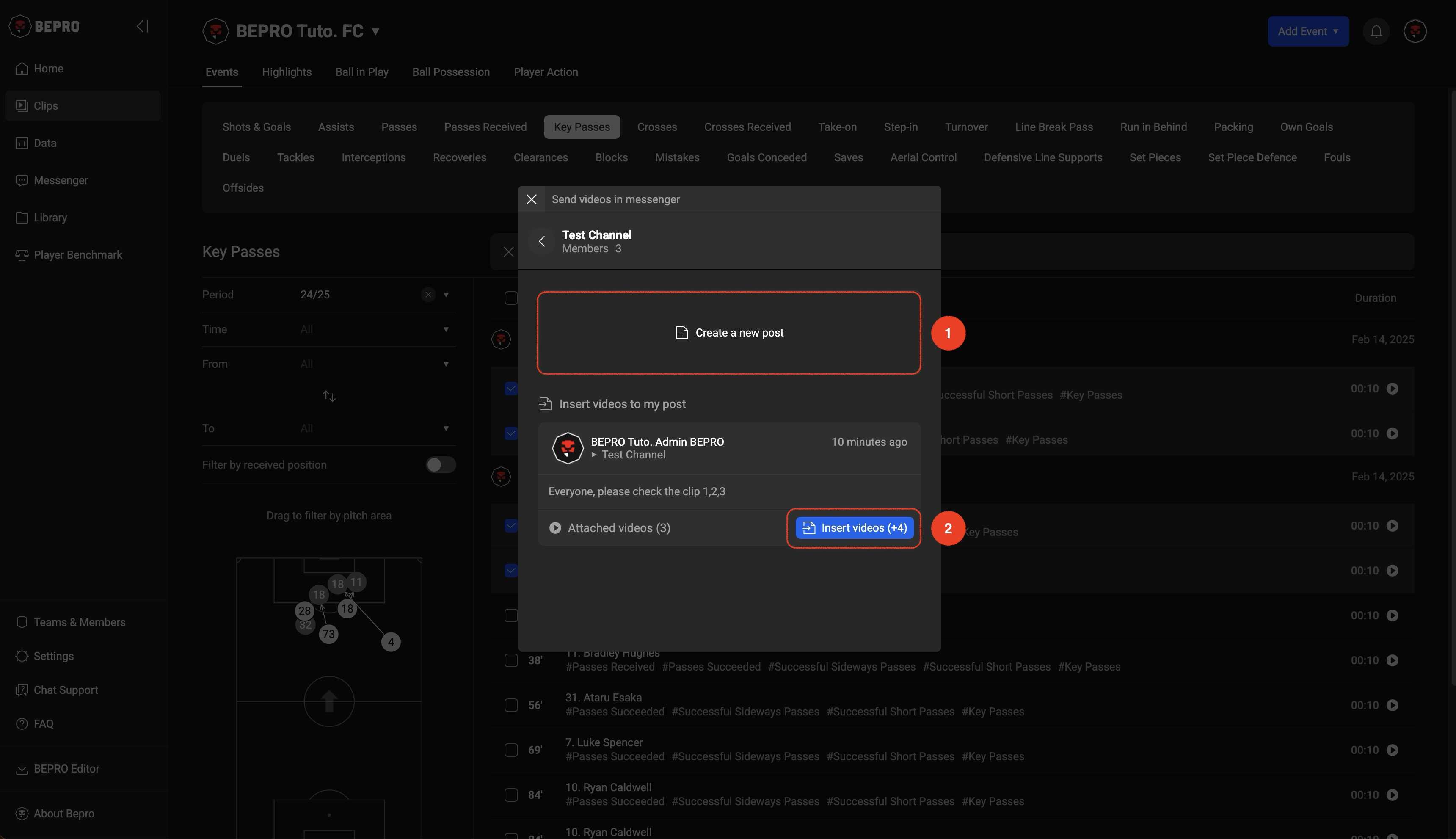
You can either create a new post with the selected videos or attach the selected videos to an already created post.
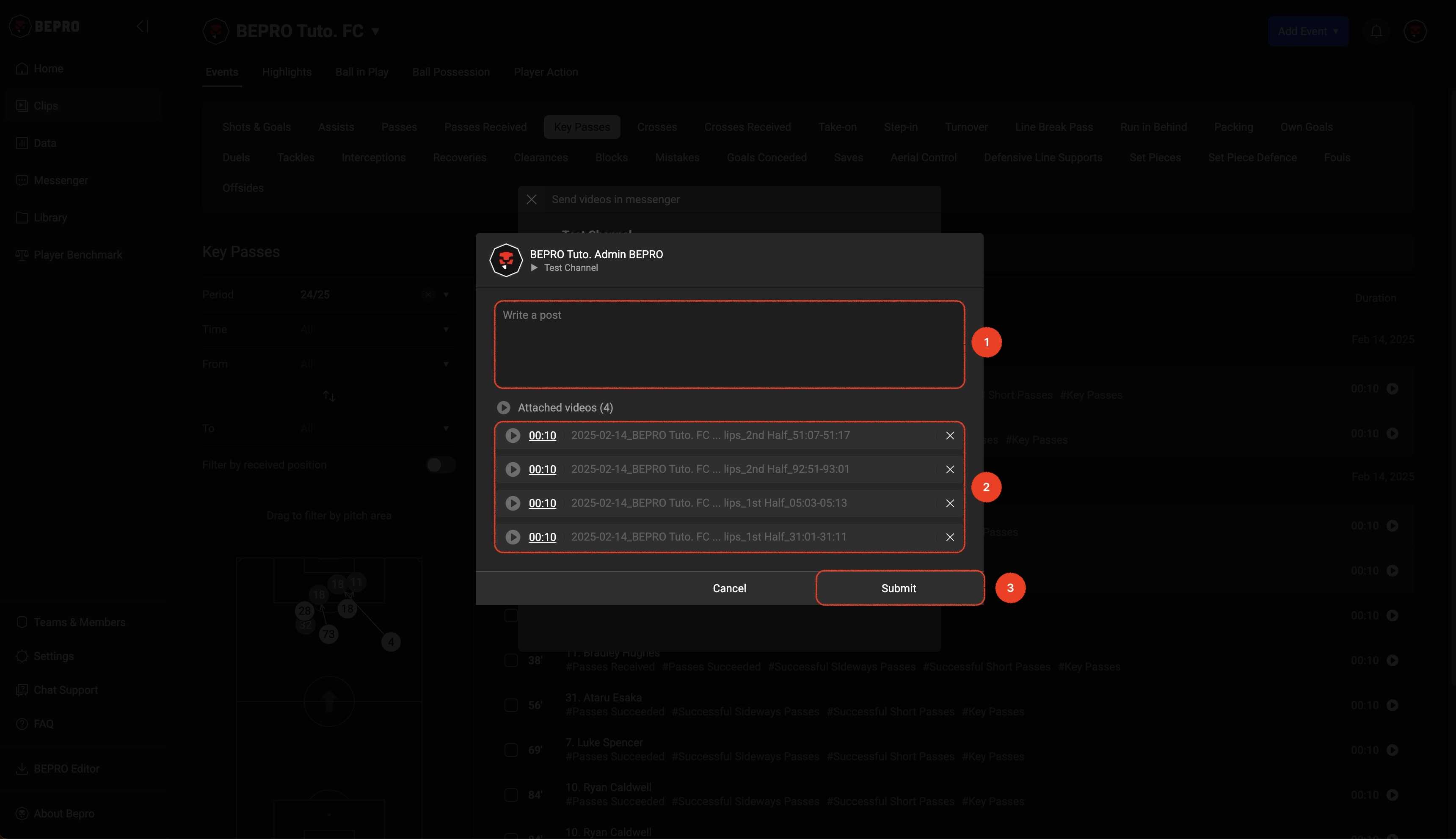
If you choose to create a post, write your message and click the button in the bottom right to complete the post creation.
3. While watching a video
While watching a video, you can create a new post with the video you're currently watching or insert that video to an already created post.
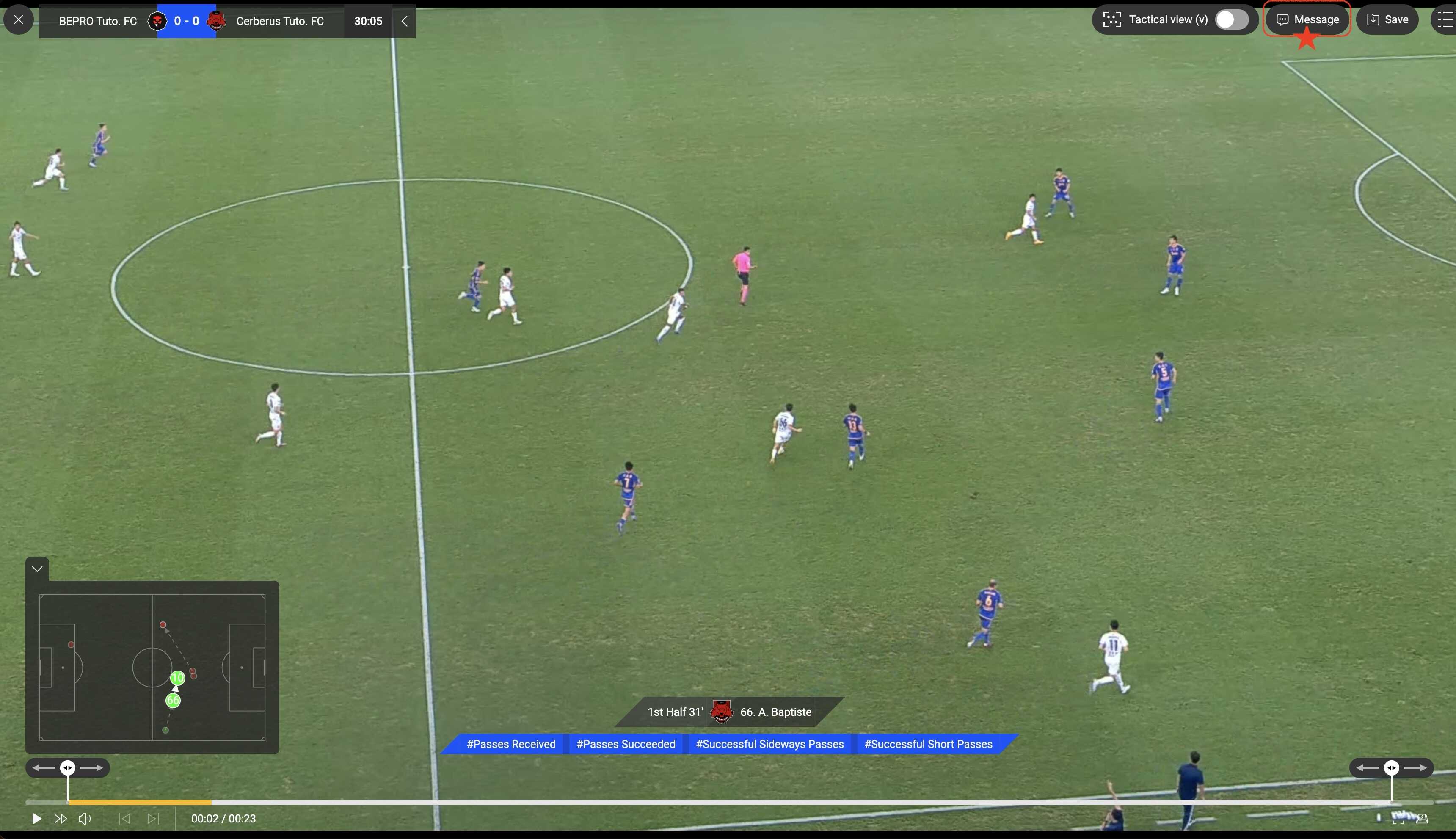
When playing a video, there is a Message button in the top right. Click this button.
You can select a channel and create a new post, or choose to Insert into an existing post, which follows the same process as option '2. With selected videos'
Previous