BEPRO Space
BEPRO Editor
Cerberus
Login & Signup
Request Match Analysis
0
BEPRO Space
Advanced
Staff or Above
Set Match Time
Set match time to see the match time in the score board
Match videos that you upload directly do not display match time by default.
However, you can make the match time appear on the scoreboard using the Set Match Time function.
First, press the more options button for your desired match and select the Set Match Time menu.
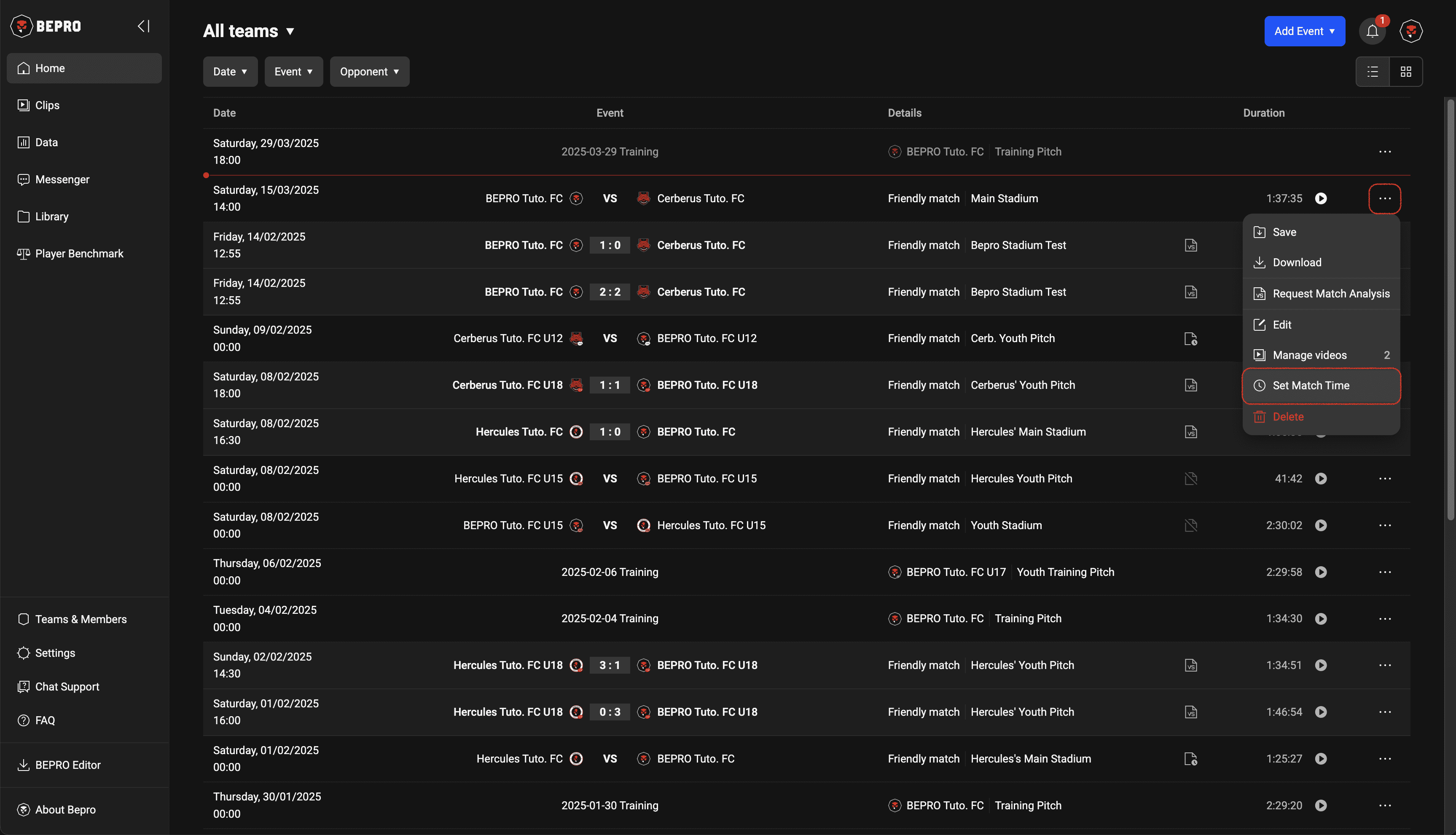
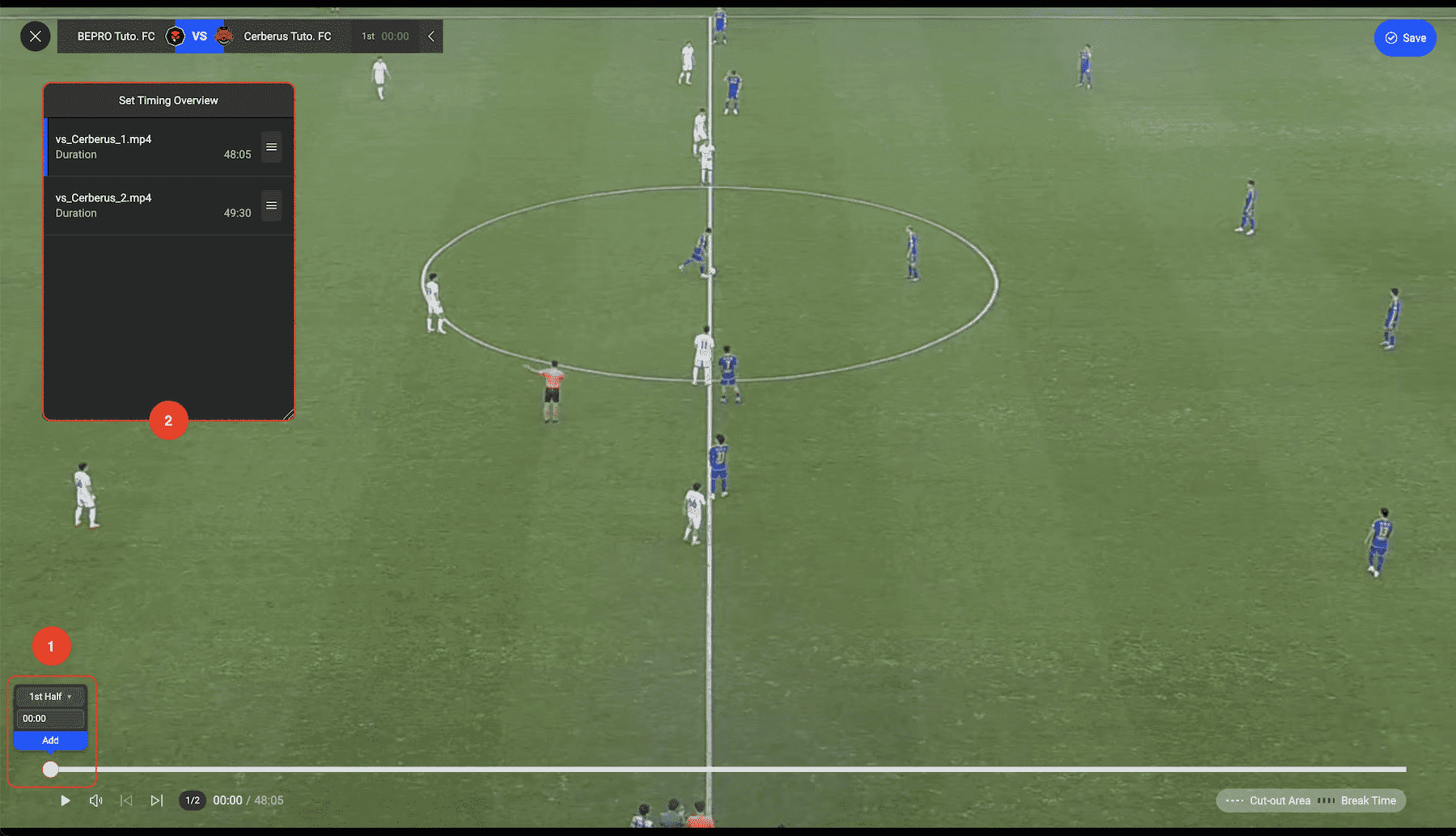
'Set Match Time' is a function for entering when the match is in progress and when it stops.
Since recording often begins a few minutes before the match starts, and break times can be long, this feature also helps remove unnecessary sections.
A panel for entering time points always follows above the playback handle.
You can press 'Add' at your desired playback point to enter the match time.
The Set Timing Overview panel helps you easily check how match times have been entered into the uploaded video.
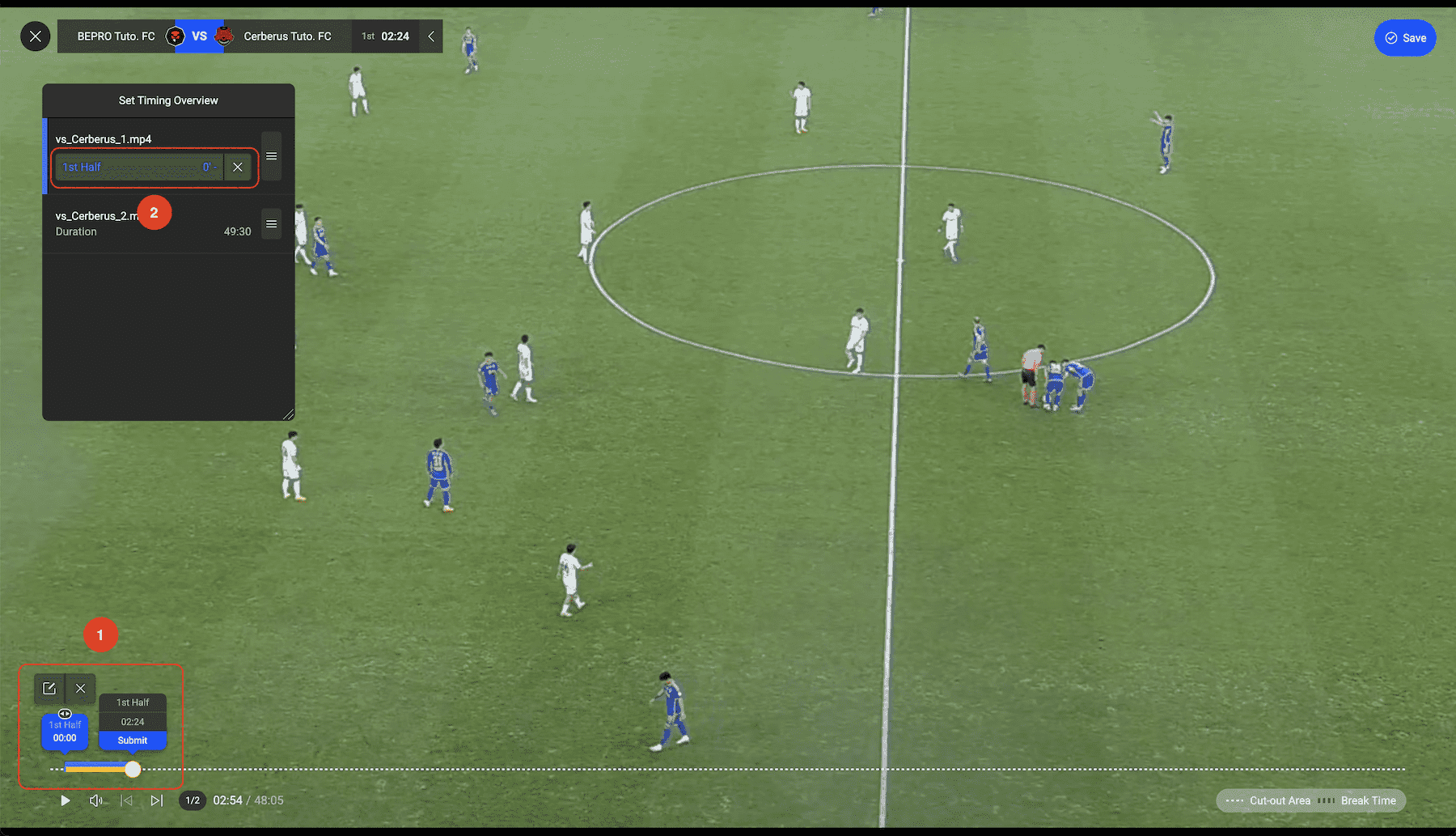
Now, find the moment when the match begins and press the Add button above the playback handle.
For football, the start time of the first half is entered, and a panel for entering the end time of the first half is displayed.
You can also see that the first half information you just entered is recorded in the Set Timing Overview panel.
Areas marked with white dotted lines on the playback bar are sections that will not be played, so please check that the match time has been entered correctly.
Even if you missed recording the beginning of the match due to various issues, you can still enter time information.
If you started recording about 5 minutes after the match began, simply change the time above the Add button from 00:00 to 05:00 before proceeding.
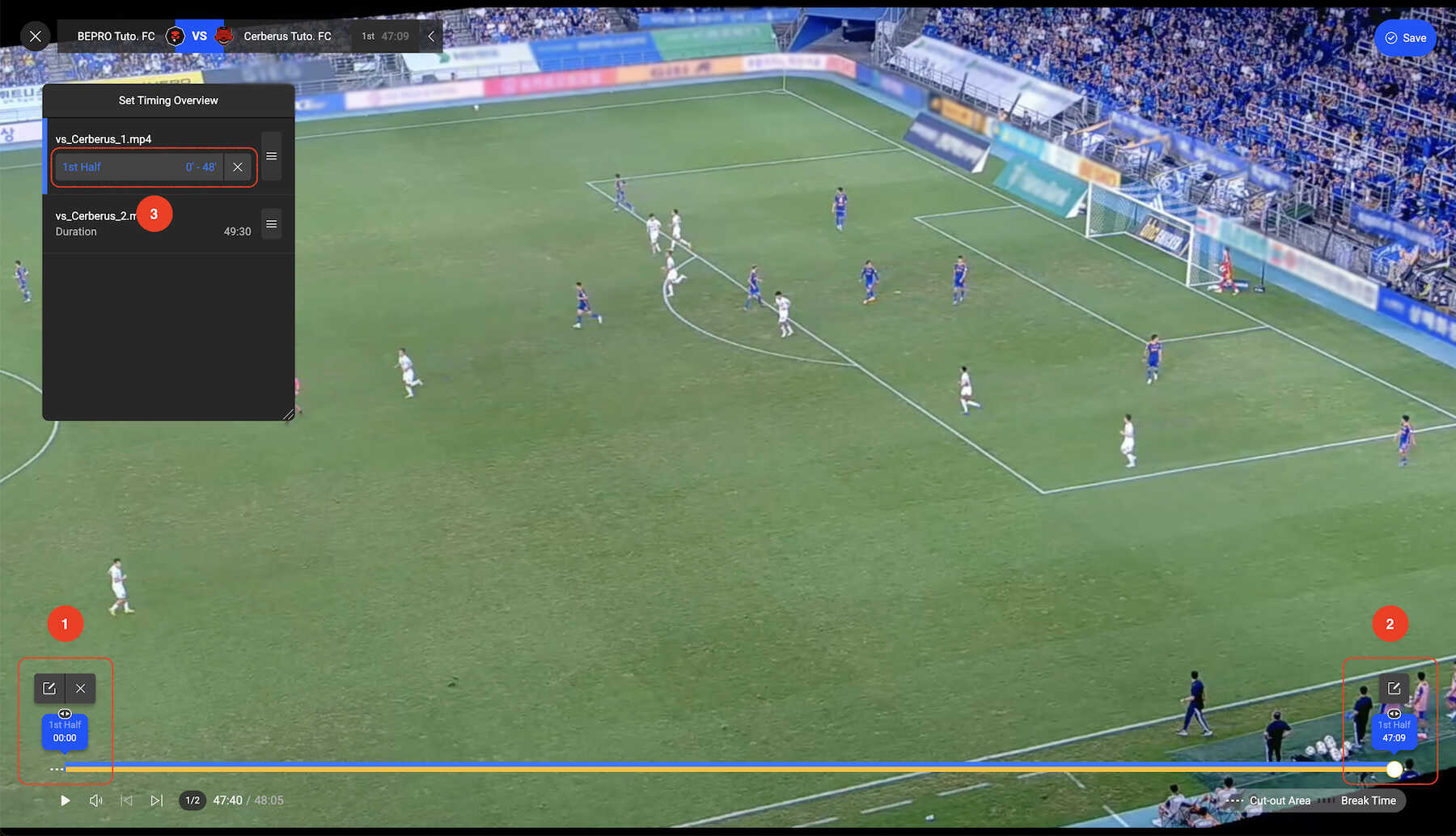
Next, move the playback point to the end of the first half and press Submit.
For sports where the match time stops when play is interrupted, press Submit at the next match time stop point rather than at the end point.
When you press Submit, you can see that the length of the entered time is also displayed in the Set Timing Overview panel.
Now you need to move to the next video for second half entry.
Click on the next video in Set Timing Overview or click the next video playback icon button at the bottom of the playback bar.
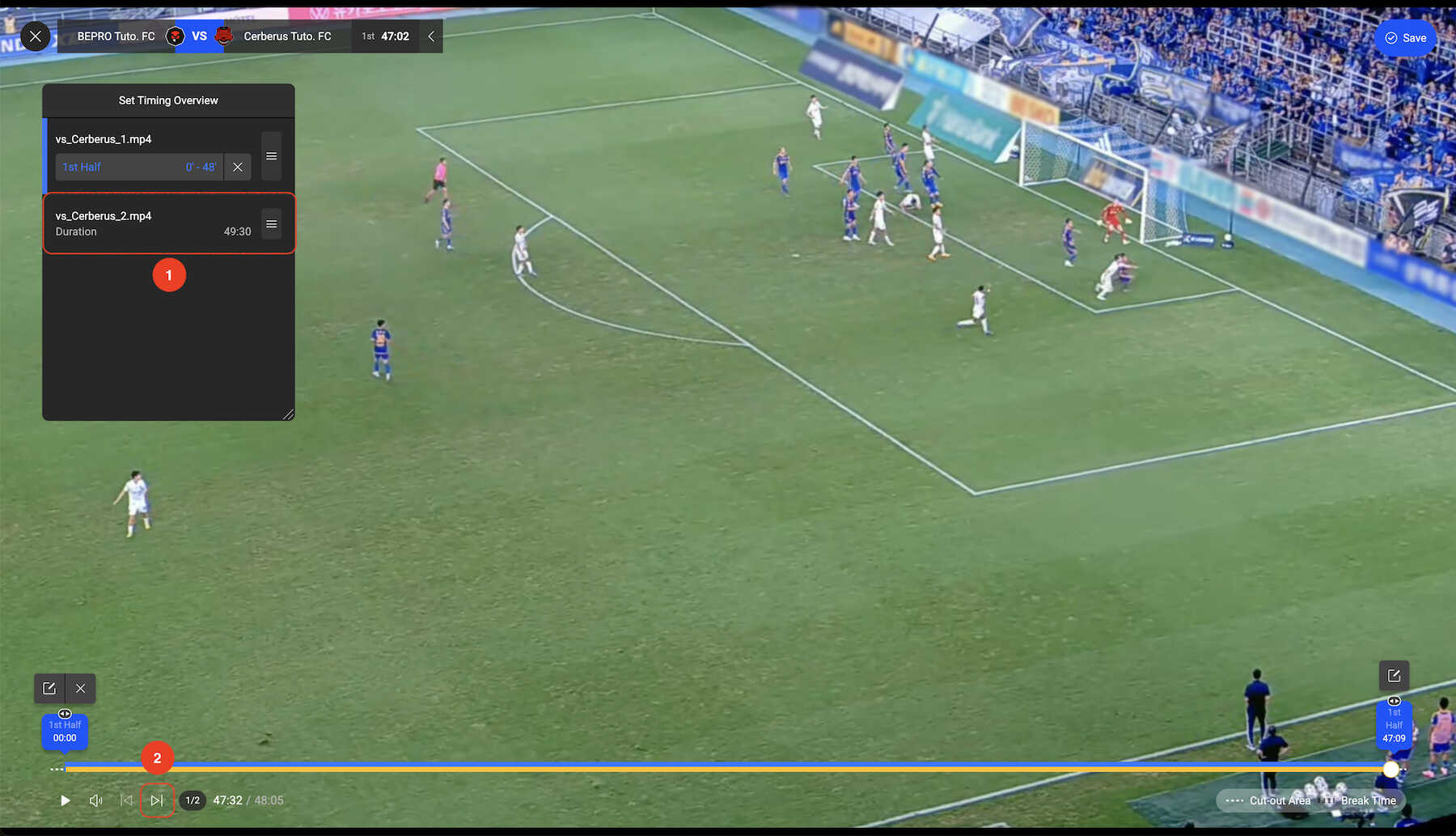
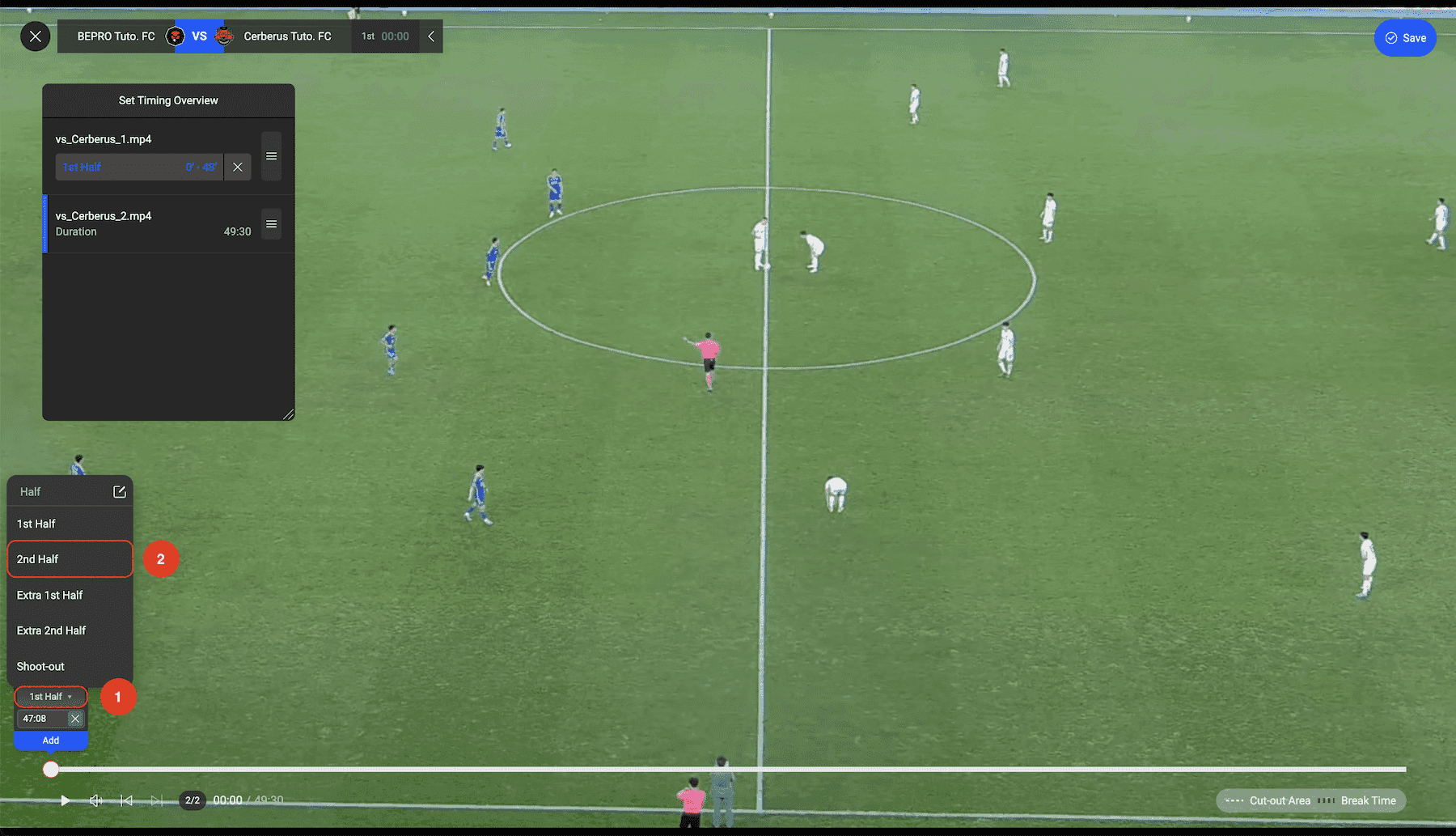
To enter the second half, click on the time type option that is set to 1st Half and change it to 2nd Half.
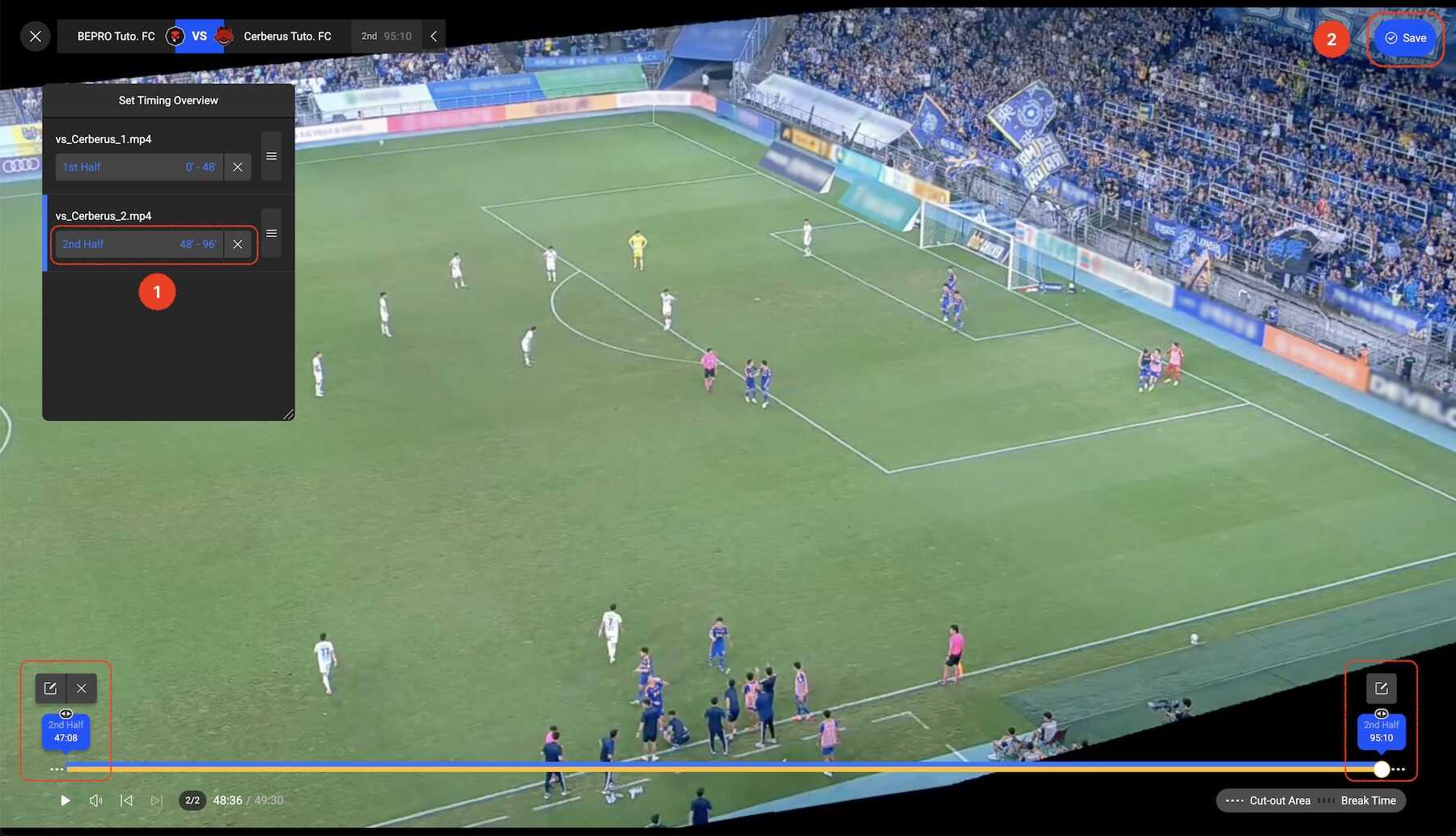
After this, set the second half section in the same way as the first half entry.
When all time settings are complete, press the 'Save' button in the upper right corner to complete the match time entry.
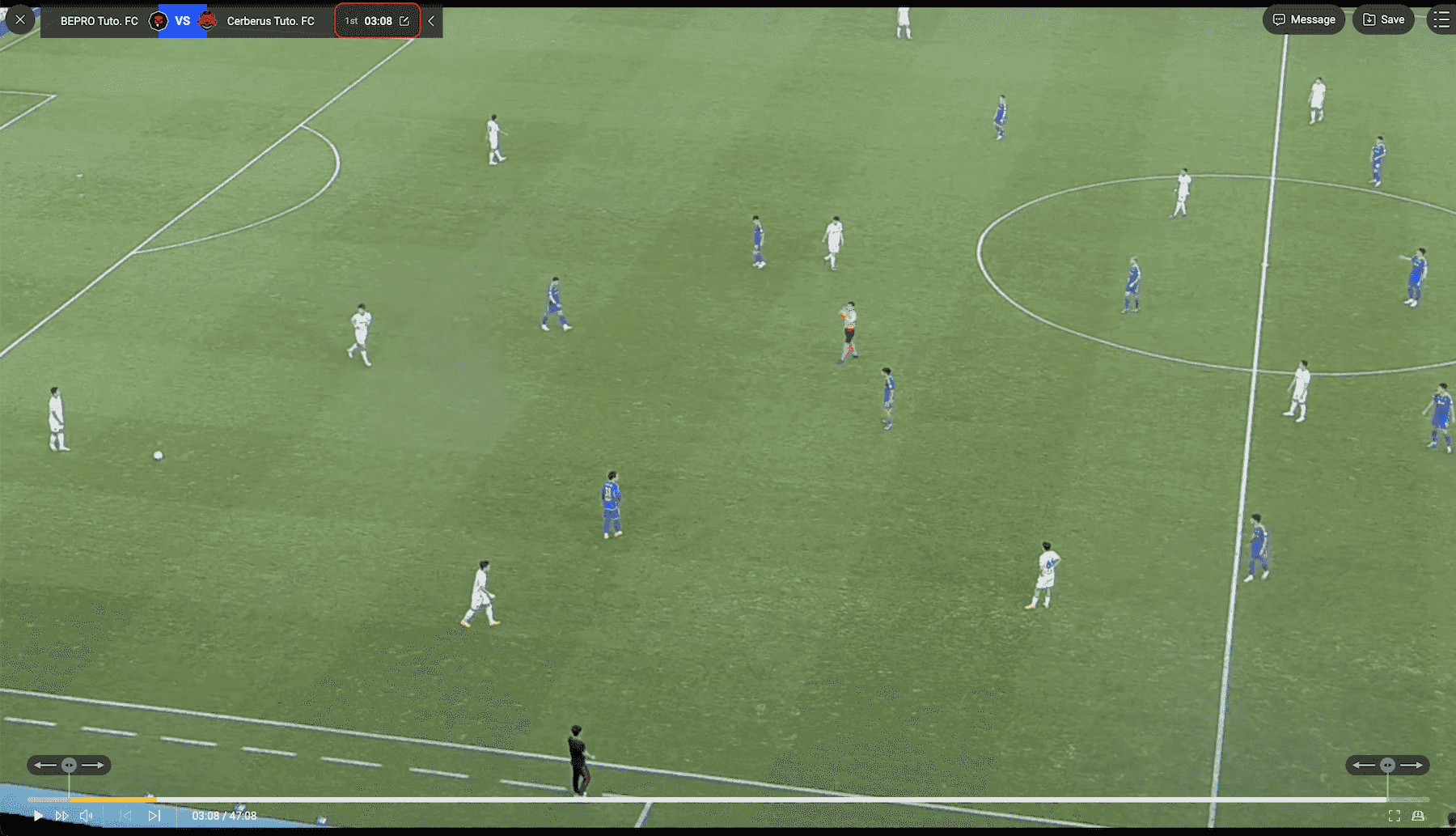
Once all entries are complete, please play the match video.
You can see that the match time is properly displayed on the scoreboard in the upper left corner.
Previous
Next